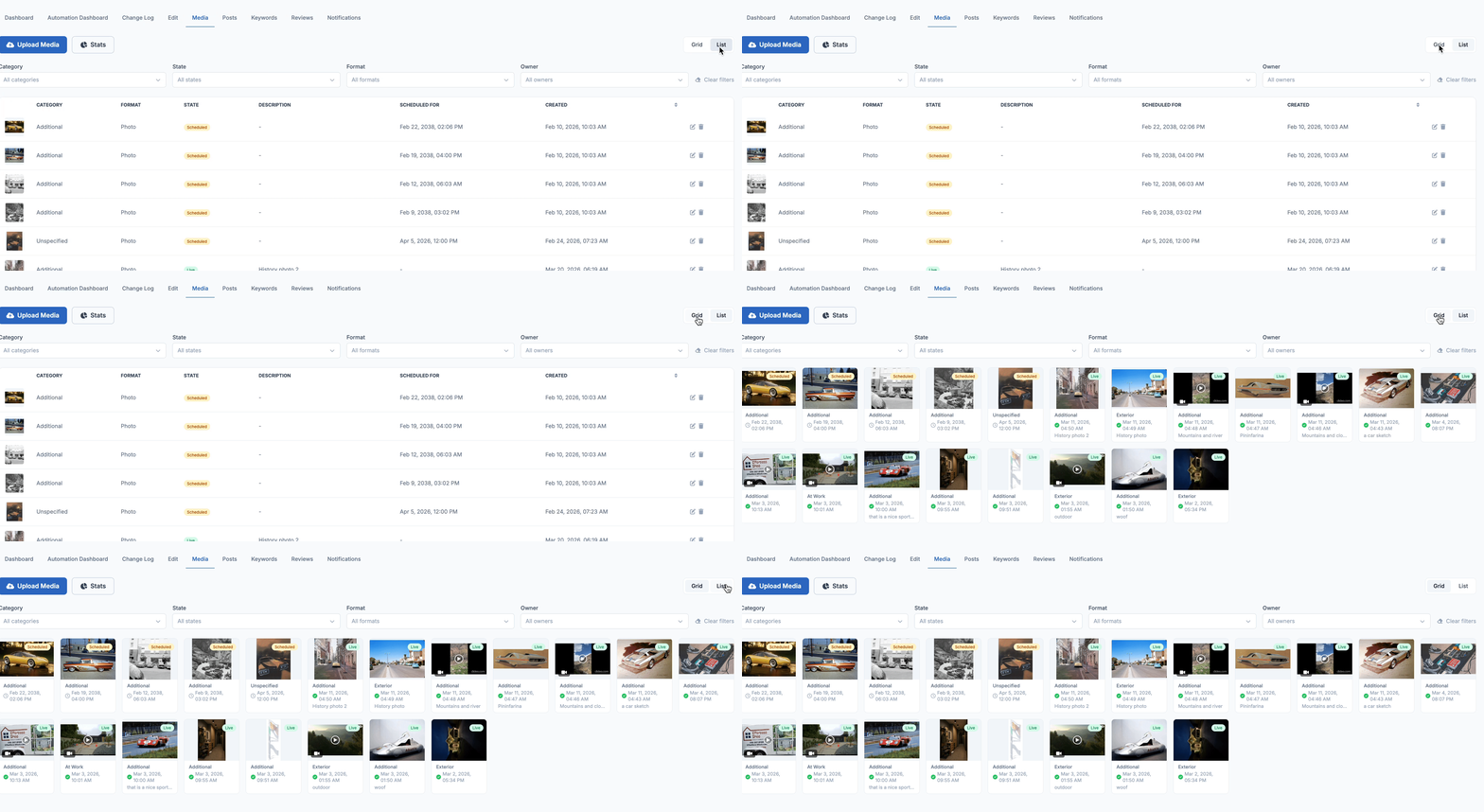
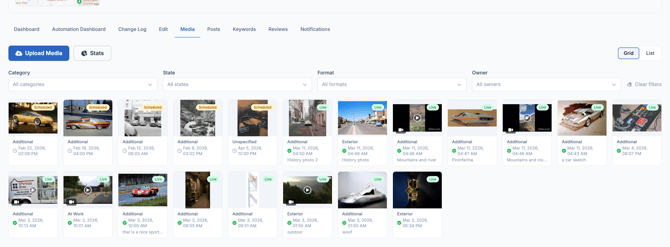
The Media tab is where all the photos and videos connected to your Google Business Profile are stored and managed. You can see every piece of media in one place — whether it was uploaded by your team or by a customer — and you can upload new media directly from LocalOptics.
It also includes a Stats panel that gives you a full breakdown of your media library at a glance.
💡 Good to know: Photos and videos on your Google Business Profile play a big role in how customers perceive your business. The Media tab makes it easy to keep your visual presence up to date without leaving LocalOptics.
Uploading New Media
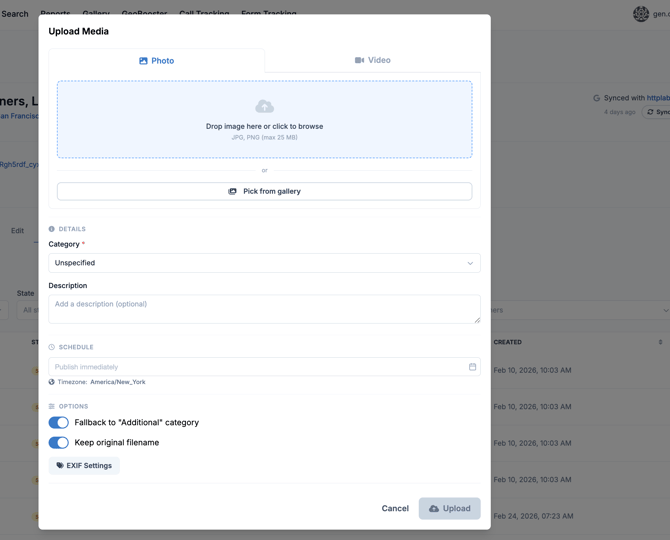
To upload a new photo or video:
- Click the Upload Media button in the top left of the page
- Select the file from your device
- Choose the category that best describes the media (see the Categories section below)
- Set a scheduled date if you want the media to go live at a specific time, or upload it immediately
- Click upload — the media will appear in your library and sync to your Google Business Profile
⚠️ Keep in mind: Photos and videos uploaded here will be published to your live Google Business Profile. Make sure the content is accurate, high quality, and appropriate for your business before uploading.
Media Stats
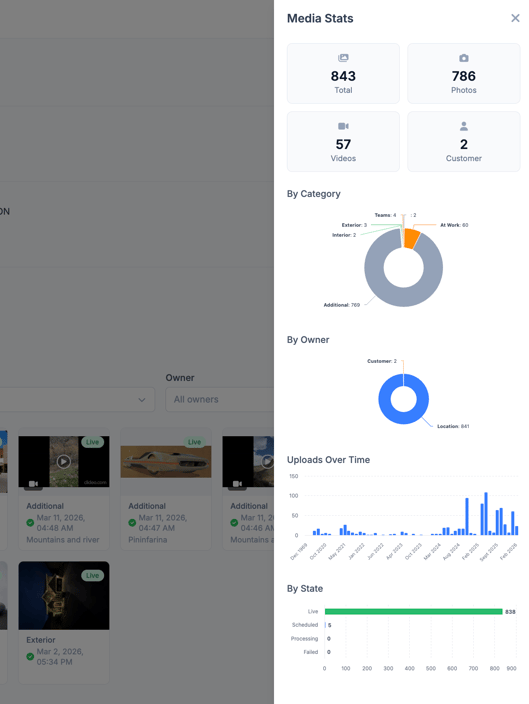
Click the Stats button at the top of the page to open the Media Stats panel. This gives you a complete picture of your media library:
| Metric | What it shows |
|---|---|
| 🖼️ Total | All photos and videos combined |
| 📷 Photos | Total photo count only |
| 🎥 Videos | Total video count only |
| 👤 Customer | Media uploaded by customers |
The Stats panel also includes four additional breakdowns:
- 📁 By Category — a chart showing how media is distributed across categories (Additional, At Work, Exterior, Interior, Teams, etc.)
- 👥 By Owner — split between media uploaded by the location vs. media uploaded by customers
- 📈 Uploads Over Time — a bar chart showing how many media files were uploaded each month, so you can track your activity over time
- 🔵 By State — a bar chart showing how many items are Live, Scheduled, Processing, or Failed
Grid View vs. List View
You can switch how your media is displayed using the Grid / List toggle in the top right corner of the page.
⊞ Grid View Shows all media as visual thumbnails. Each card displays the category, status badge, date, and description. Best for browsing and getting a visual overview of your library.
≡ List View Shows all media in a table with columns for Category, Format, State, Description, Scheduled For date, and Created date. Each row also has edit and delete icons. Best for managing details and bulk reviewing.