
What Is the Incoming Calls Page?
The Incoming Calls page gives you a complete visual and data overview of all phone call activity coming through your LocalOptics tracking numbers. It combines headline metrics, a daily trend chart, and a detailed call log — all in one place.
By default the page shows data from the past 28 days. You can adjust this at any time using the date range picker in the top right.
💡 Good to know: All data on this page reflects calls received through your LocalOptics tracking numbers only. Calls made directly to a business's regular phone number — bypassing the tracking number — will not appear here.
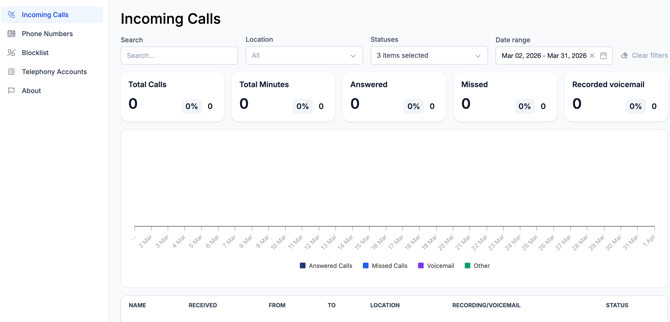
Your Key Call Metrics
At the top of the Incoming Calls page you'll see five metric blocks. Each one shows the current period value, the percentage change compared to the previous period, and the previous period's raw number.
| Metric | What it measures |
|---|---|
| Total Calls | The total number of calls received across all tracked numbers in the selected period |
| Total Minutes | The combined duration of all calls in the selected period |
| Answered | The number of calls that were picked up and connected |
| Missed | The number of calls that rang through but were not answered |
| Recorded Voicemail | The number of calls that resulted in a voicemail being left |
💡 Tip: Pay close attention to your Missed calls count relative to your Total Calls. A high missed call rate can signal understaffing, incorrect business hours, or a call forwarding issue that needs fixing.
Using the Filters
The filter bar at the top of the page lets you narrow down the call data you're viewing:
🔍 Search Search by caller name, phone number, or any keyword in your call log.
📍 Location Filter calls by a specific location. By default all locations are shown. Use this when you want to focus on call activity for one particular business.
🔵 Statuses Filter by call status — Answered, Missed, Voicemail, or Other. You can select multiple statuses at once. By default all statuses are shown.
📅 Date Range Set a custom date range using the date picker. The default view shows the past 28 days but you can adjust this to any range you need — for example the last 7 days, a specific month, or a custom period for client reporting.