
The Image Gallery is a central library inside LocalOptics where all your uploaded images are stored. From here you can upload an image once and publish it to any number of locations, on whatever schedule you choose — without uploading the same image repeatedly for each location.
The gallery stores your locally uploaded images and gives you full control over when, where, and how they go live on your Google Business Profiles.
Uploading Images to the Gallery
To add images to the gallery, navigate to Gallery in the top navigation bar. You have two ways to upload:
- Drag and drop — drag image files directly onto the gallery page
- Select from your device — click to browse and choose files from your computer
Once uploaded, images are saved to your gallery and available to use immediately across any of your locations.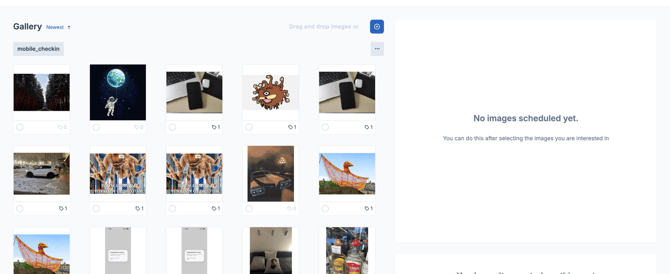
The Scheduling Sidebar — Step by Step
Step 1 — Choose an image category Select the category that best describes your photo — for example, Exterior, Interior, At Work, or Additional.
⚠️ Only select categories that are valid for the location type you're posting to. For example, Food and Menu categories should only be used for restaurant-type listings. If you accidentally select an unsupported category, LocalOptics will automatically fall back to a category the listing does support.

Step 2 — Select your locations Choose which locations the images should be published to. You have two options:
- Select locations individually — pick specific locations by name
- Use location tags — enter one or more tags to publish to all locations that share that tag. This is the most efficient method for large groups of locations.
Step 3 — Configure your schedule Set the following:
- Start date — when you want publishing to begin
- Duration — how many days to spread the publishing over
- Business days only — toggle this on if you only want images to publish Monday through Friday

LocalOptics will automatically space out the publication of your images across the days you've selected — you don't need to manually assign a date to each image.
Step 4 — Set your EXIF data and SEO settings See the EXIF and Image Optimization section below for full details.
Step 5 — Click Schedule Once you've configured everything, click Schedule. You'll see a publication timeline showing when each image is set to go live.
To cancel a scheduled publication and remove all associated published images, click the Delete button on the publication.
💡 Tip: You can view all your scheduled image publications at any time by selecting the publication from the bottom navigation of the gallery page.
Four Scheduling Scenarios
The gallery's scheduling tool is flexible enough to handle a wide range of publishing needs. Here are the four main scenarios:
Scenario 1 — One image to multiple locations, published instantly Select a single image, choose any number of locations or tags, set the publishing days to 1, and pick your date. The image will publish to every selected location on that date simultaneously.
Scenario 2 — One image to multiple locations, drip published Select one or more images and any number of locations or tags. Set your desired number of publishing days and a start date. LocalOptics will automatically space out the publishing across your selected timeframe — useful for making activity look natural and consistent.
Scenario 3 — Multiple images to one location Select multiple images and a single location, then set your publishing days. LocalOptics will randomly spread the images across the date range. For example, selecting 10 images and 20 publishing days will result in 10 random publishing days within that range.
Scenario 4 — Multiple images to multiple locations Select any number of images and any number of locations or tags. LocalOptics will programmatically spread the publishing of all images across all selected locations over your chosen schedule.
if you have questions about scheduling, EXIF templates, or image categories, reach out to the LocalOptics support team through the platform.