
📍 Where to find it: Top navigation bar → Reports → select a report
What Is a LocalOptics Report?
A LocalOptics report is an automatically generated performance summary for a single location, covering a specific time period. It compares your current period against the previous period — so you can immediately see whether performance is improving, declining, or staying flat.
Reports can be delivered by email on a weekly or monthly schedule and can be white-labeled with your own branding for client delivery.
💡 Good to know: Every report shows two time periods side by side — the current period and the previous period — along with a percentage change for each metric. This makes it easy to spot trends without having to do any manual calculations.
Report Header
At the top of every report you'll see:
For example: Mar 22, 2026 – Mar 28, 2026 VS Mar 15, 2026 – Mar 21, 2026 means the report is comparing last week against the week before.
⚠️ Note: Insights in the report may slightly differ from what you see inside LocalOptics because report data is always calculated in UTC time zone.

Section 1 — Views Breakdown
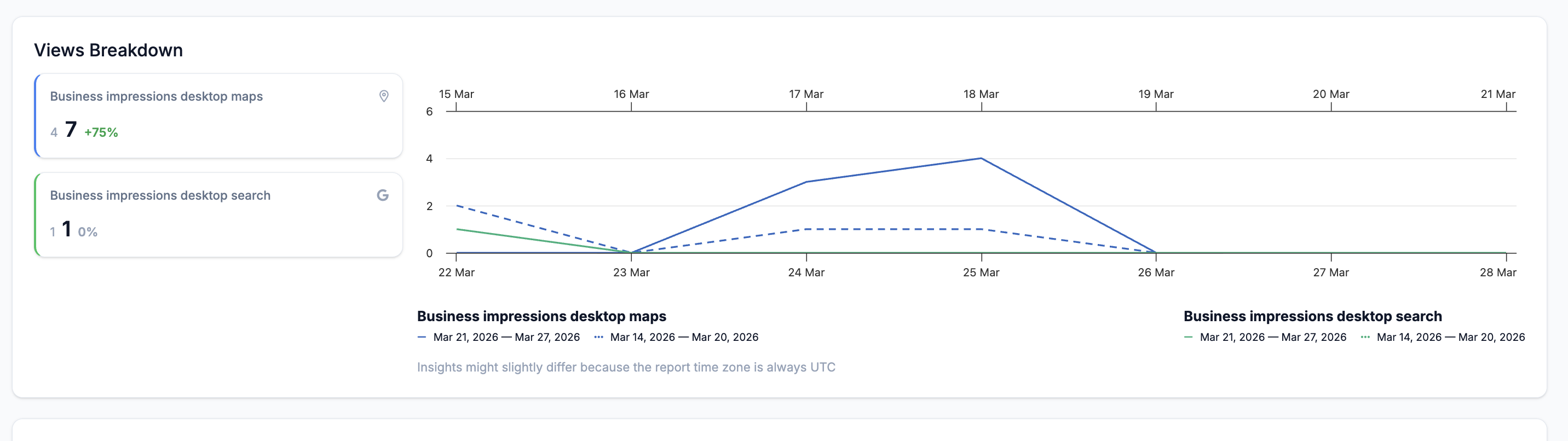
The Views Breakdown section shows how many times your Google Business Profile was seen — broken down by device and surface. Each metric shows the current period value, the previous period value, and the percentage change between them.
Reading the change indicators:
- A positive percentage (e.g. +75%) means performance improved compared to the previous period
- 0% means no change
- A negative percentage means performance declined
Section 2 — Local Posts
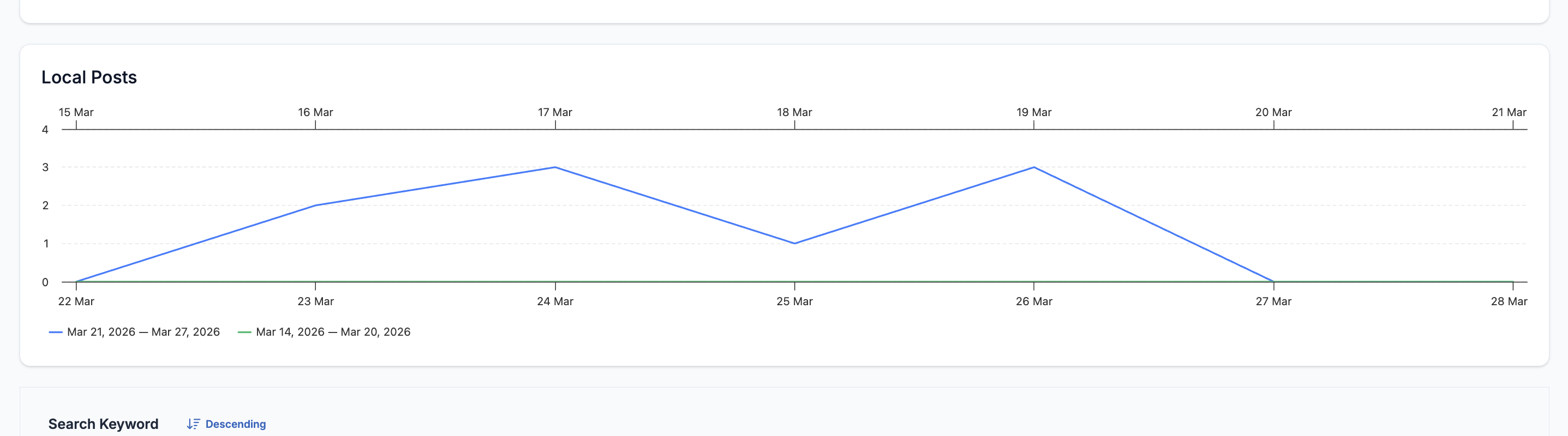
This section shows your Google Business Profile post activity over the reporting period, displayed as a line chart comparing the current and previous period.
Section 3 — Maps Search GeoGrids
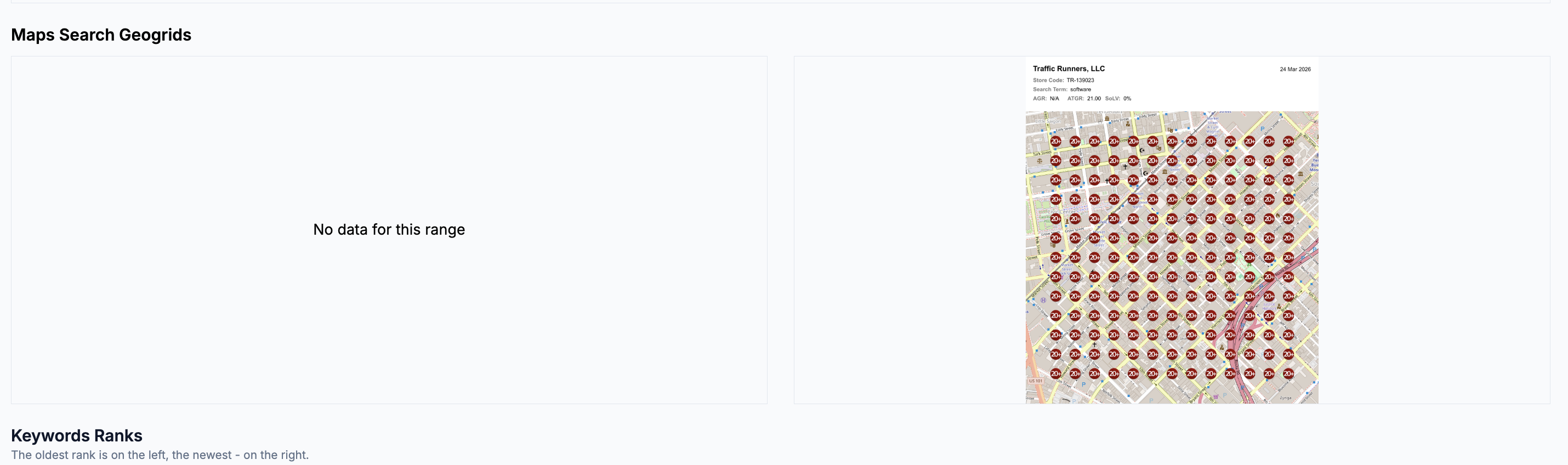
This section shows the GeoGrid for your location during the reporting period. If a Scheduled GeoGrid is linked to this report configuration, the GeoGrid map will appear here showing your rankings across the area.
If the GeoGrid shows "No data for this range" This means no GeoGrid was run for this location during the reporting period. To include GeoGrid data in future reports, make sure a Scheduled GeoGrid is set up and linked to this report configuration.
Section 4 — Keyword Rankings
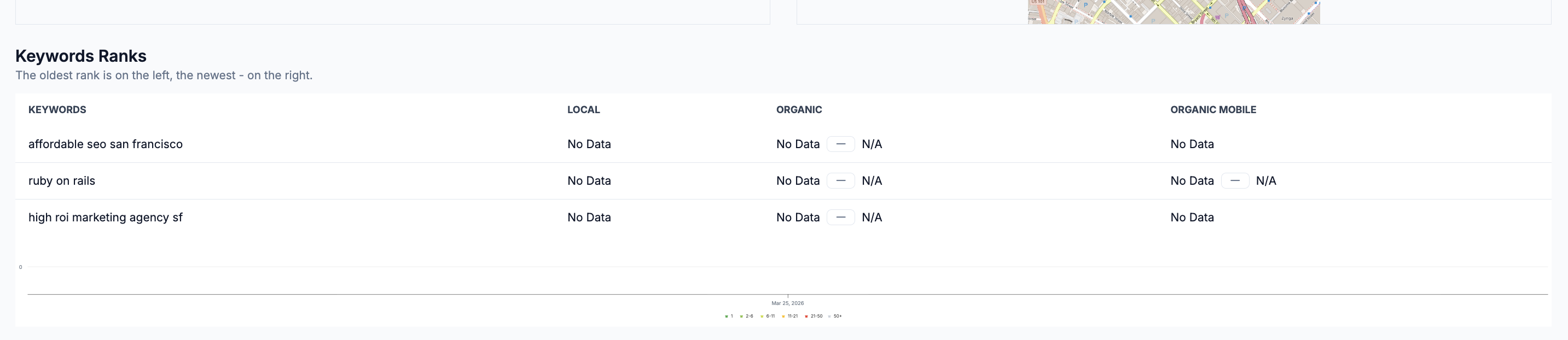
This section tracks your website's organic search rankings for specific keywords over time. Rankings are shown from oldest on the left to newest on the right — giving you a clear view of whether your keyword positions are improving.
Rankings are broken down into three columns:
| Column | What it tracks |
|---|---|
| Local | Your ranking in Google's local search results |
| Organic | Your ranking in standard Google Search results on desktop |
| Organic Mobile | Your ranking in Google Search results on mobile |
If a keyword shows No Data, it means your website was not detected ranking for that keyword during the period.
💡 Next step: Not sure how to set up a report? Check out the How to Create a Report article to configure your report schedule, properties, and white label settings