This article provides a structured walkthrough of the LocalOptics Location Dashboard. It is intended to help new users connect their Google account, navigate the dashboard, interpret performance data, and access key tools for managing their Google Business Profile locations.
What Is the Location Dashboard?
The Location Dashboard is your home base inside LocalOptics. Think of it as a control center — everything related to a specific business location lives here, from your Google Business Profile details to your performance stats, posts, and reviews.
Each location gets its own dashboard, so you always have a focused view of what's happening for that business.
Step-by-Step: Navigating Your Dashboard
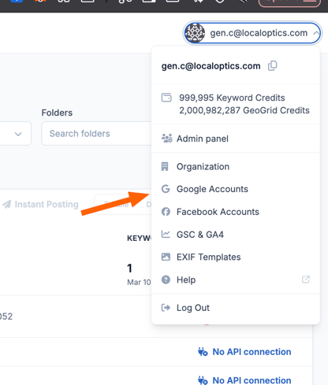
🔗 Connect Your Google Account
The first thing you'll do is connect your Google account to LocalOptics. Once you do this, all the Google Business Profile locations you manage will automatically appear on your screen.
You'll only need to do this once — after that, your locations will always be there when you log in
Dashboard Navigation
After you connect a google account all your locations will be under a location section, click on an a location that you want to see a Dasboard of
📍 Open a Location's Dashboard
From the main screen, click on any location to open its dashboard. Here's what you'll see right away:
- Business category: what type of business it is
- Phone number: the number listed on your Google profile
- Time zone: the location's local time zone
- Baseline start date: when LocalOptics started tracking this location
📝 Use Notes to Stay Organized
The Notes section is your personal sticky note for a location. Use it to save reminders or instructions that are important for managing that business.
Some examples of what you might write here:
- "Run GeoGrid every Monday"
- "Post every Tuesday and Thursday"
- "Contact owner before making profile changes"
Notes are only visible to your team inside LocalOptics — they won't appear on your public Google profile.
🏷️ Group Locations with Tags
If you manage many locations, tags help you stay organized. A tag lets you group similar locations together into one folder so you can manage them as a set.
For example:
- All your plumbing businesses in one area → tag: "Plumbers – North"
- A client's chain of restaurants → tag: "Pasta Palace"
To add a tag, click Add Tag on the location dashboard and type your label.
📊 Read Your Performance Stats
- Last : 7 days /30 days / 90 days /180 days: short and medium-term views
- Last year: see the full year at a glance
- Breakdown by month: compare performance month by month to spot busy or slow periods
- Compare against previous period: see if you're doing better or worse than the same time last year
✍️ Manage Posts & Reviews
Scroll down on the dashboard to find your recent posts and reviews side by side.
- Posts shows everything you've scheduled or published to your Google profile
- Reviews shows your most recent customer reviews
Click "Go to all posts" or "Go to all reviews" to open the full management pages where you can reply, schedule, and organize everything.
🗺️ Check Your GeoGrid Performance
The GeoGrid section shows you how your business appears on Google Maps across different areas near your location.
It uses a grid of points around your location to show where you're ranking well and where there's room to improve. This is especially useful for local SEO.
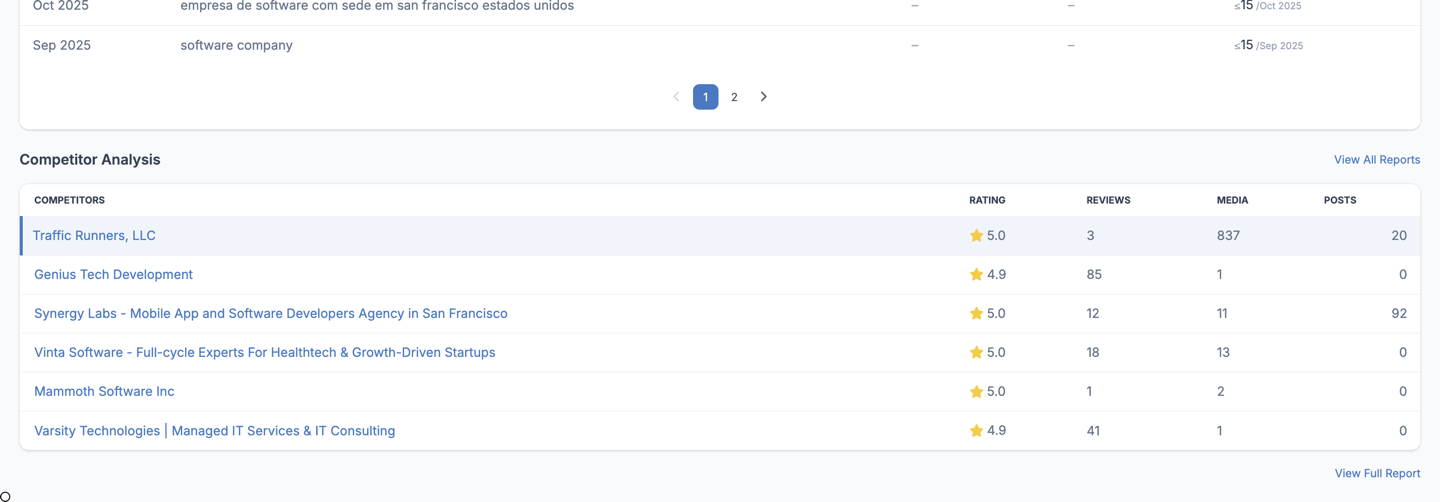
🏁 Set Up Competitor Analysis
The Competitor Analysis section lets you compare your business performance directly against nearby competitors.
This section needs to be configured before it shows data. Once set up, you'll see a side-by-side comparison right inside your dashboard — no need to jump to another tool.