What Is Media Uploading?
LocalOptics lets you upload photos directly to your Google Business Profile listings — either one location at a time, or across multiple locations simultaneously. You can publish images immediately or schedule them in advance, and you have full control over the image category and EXIF data settings.
Uploading to a Single Location
Step 1 — Open the location Go to your Locations page and click on the location you want to upload media to. This opens that location's individual dashboard.

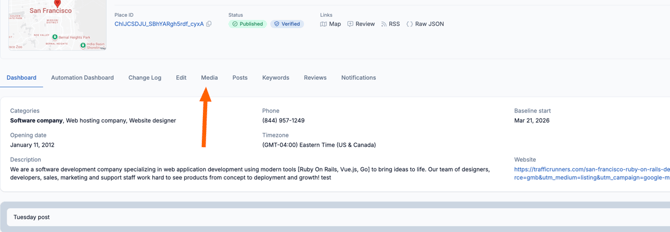
Step 2 — Navigate to Media Click the Media tab in the location's navigation bar.
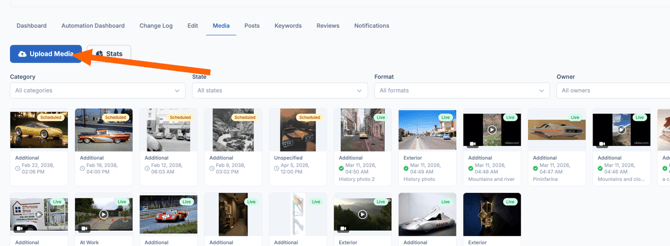
Step 3 — Click Upload Media Click the Upload Media button at the top of the page to begin the upload process.
Step 4 — Select an image category Choose the category that best describes your image — for example, Exterior, Interior, At Work, or Additional.
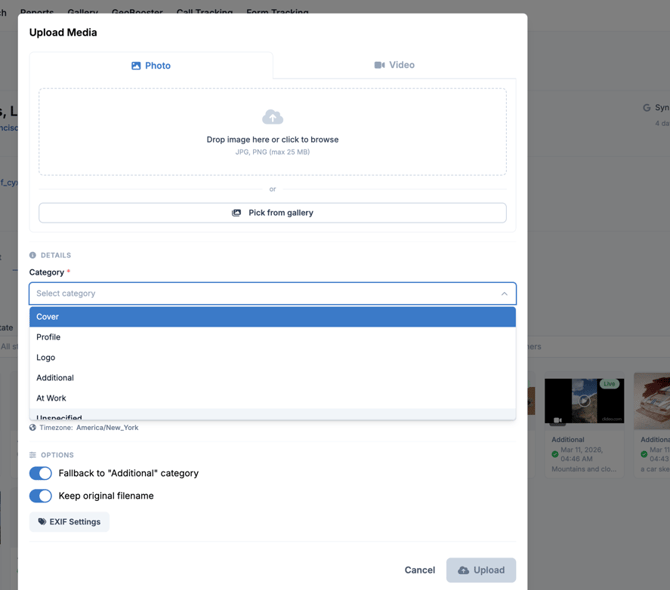
💡 Recommended: Enable the Fallback to "Additional" Category option by setting it to Yes. If Google rejects your image because it considers it a mismatch for the category you selected, LocalOptics will automatically retry the upload under the Additional category. This significantly increases the chance of your image going live successfully.
Step 5 — Select your image Click Select Image. You'll have two options:
- Choose an image from your existing gallery in LocalOptics
- Upload a new image directly from your device
Step 6 — Set your EXIF data After selecting your image, you'll be taken to the EXIF data screen. EXIF data is metadata embedded in your image file — it can include information like location coordinates, device details, and more.
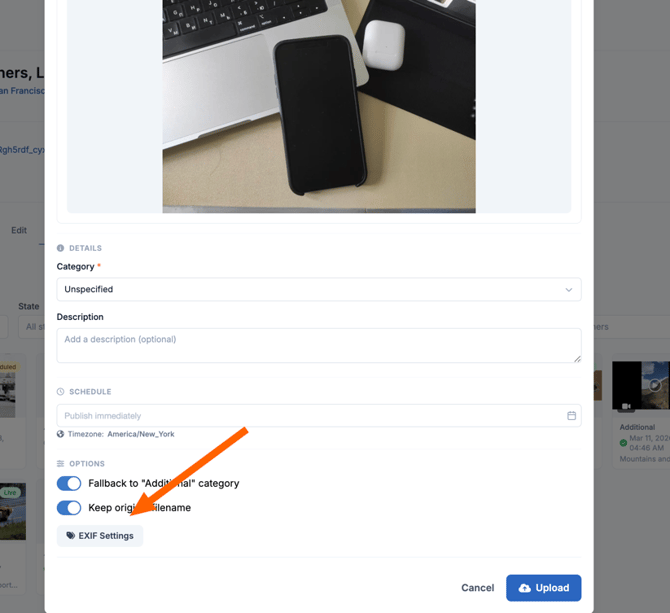
You have two options:
- Recommended EXIF data — LocalOptics will apply the recommended settings automatically. If you're not familiar with EXIF data, select this option.
- Custom EXIF data — If you want to specify your own EXIF settings, you can configure them manually here.
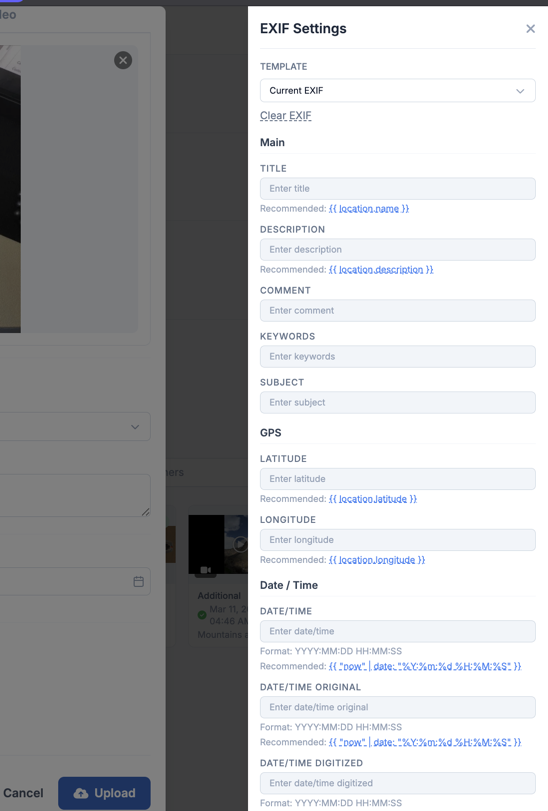
Step 7 — Publish or schedule At the bottom of the screen, choose how you want to publish the image:
- Publish now — click Submit to upload the image to your Google Business Profile immediately
- Schedule — select the Schedule Media option, then pick a specific date and time for the image to go live. Click Submit once you've set your preferred date and time.
⚠️ Keep in mind: Once submitted, the image will be published or queued for publishing on your live Google Business Profile. Make sure the image is high quality and appropriate before submitting.