
What Is an Audit Configuration?
Before LocalOptics can generate an audit report, you need to set up a configuration. This tells LocalOptics which keyword to analyze and which competitors to compare your business against. Once configured, the audit runs automatically on your chosen schedule and saves the results to your Automation Dashboard.
💡 Good to know: You only need to set this up once. After that, LocalOptics handles everything automatically and your audit results will update on schedule.
How to Set Up a New Audit
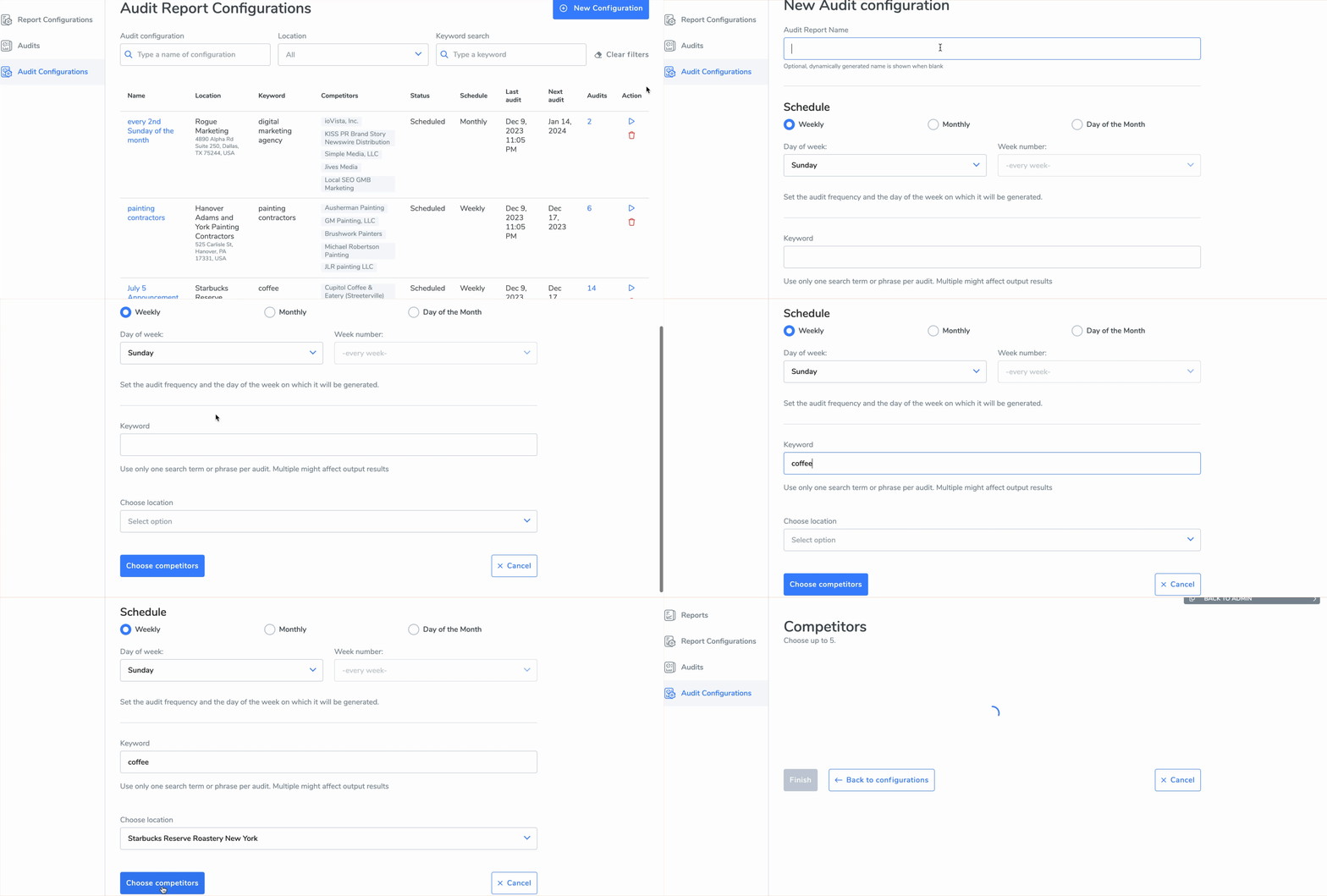
Step 1 — Click New Config From the Audits section inside your location's Automation Dashboard, click the New Config button to open the audit setup form.
Step 2 — Enter a name and select a schedule Give your audit configuration a descriptive name — for example, the keyword you're targeting or the campaign it's part of. Then select how often you want the audit to run — weekly or monthly are the most common options.
Step 3 — Enter one keyword This is the most important step. Enter the single keyword you want to analyze — for example "immigration attorney" or "plumber near me." This keyword determines which competitors LocalOptics identifies and which search results are used for the comparison.
⚠️ Important: Enter only one keyword per configuration. The keyword should be the primary search term your customers use to find your business on Google.
Step 4 — Wait for competitors to load After entering your keyword, LocalOptics will automatically search Google and surface the businesses that are competing for that keyword in your area. Wait a few moments for the competitor list to populate.
Step 5 — Choose up to 5 competitors From the list of businesses that appear, select up to 5 competitors you want to include in your audit. Choose the ones that are most relevant to your business and most active in your local market.

Step 6 — Wait for the results Once you've selected your competitors and confirmed your configuration, LocalOptics will begin generating your audit report. This may take a few moments. When it's ready, your full audit report will be available in the Automation Dashboard.
You're all set — LocalOptics will now run this audit automatically on your chosen schedule and save each result for you to compare over time.