What Is a Report Configuration?
A Report Configuration tells LocalOptics what data to include, which location to report on, how often to generate the report, and where to send it. Once set up, reports are generated and delivered automatically on your chosen schedule — no manual work required.
💡 Good to know: Reports can include GeoGrid data, GBP performance stats, reviews, posts, and more. You control exactly what goes in and how often it runs.
Step 1 — Create a New Report Configuration
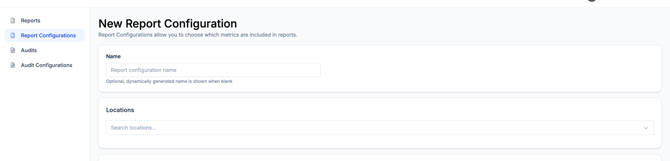
From the Reports section in the top navigation bar, click New Config to open the report setup form.
You'll be setting up a recurring schedule — meaning LocalOptics will automatically generate and send this report on a weekly or monthly basis going forward. 
Step 2 — Name, Location, and Search Term
Fill in the following:
Name Enter a name for internal use — this is how the configuration will appear in your Reports list. Use something descriptive like the client name, location, or keyword being tracked.
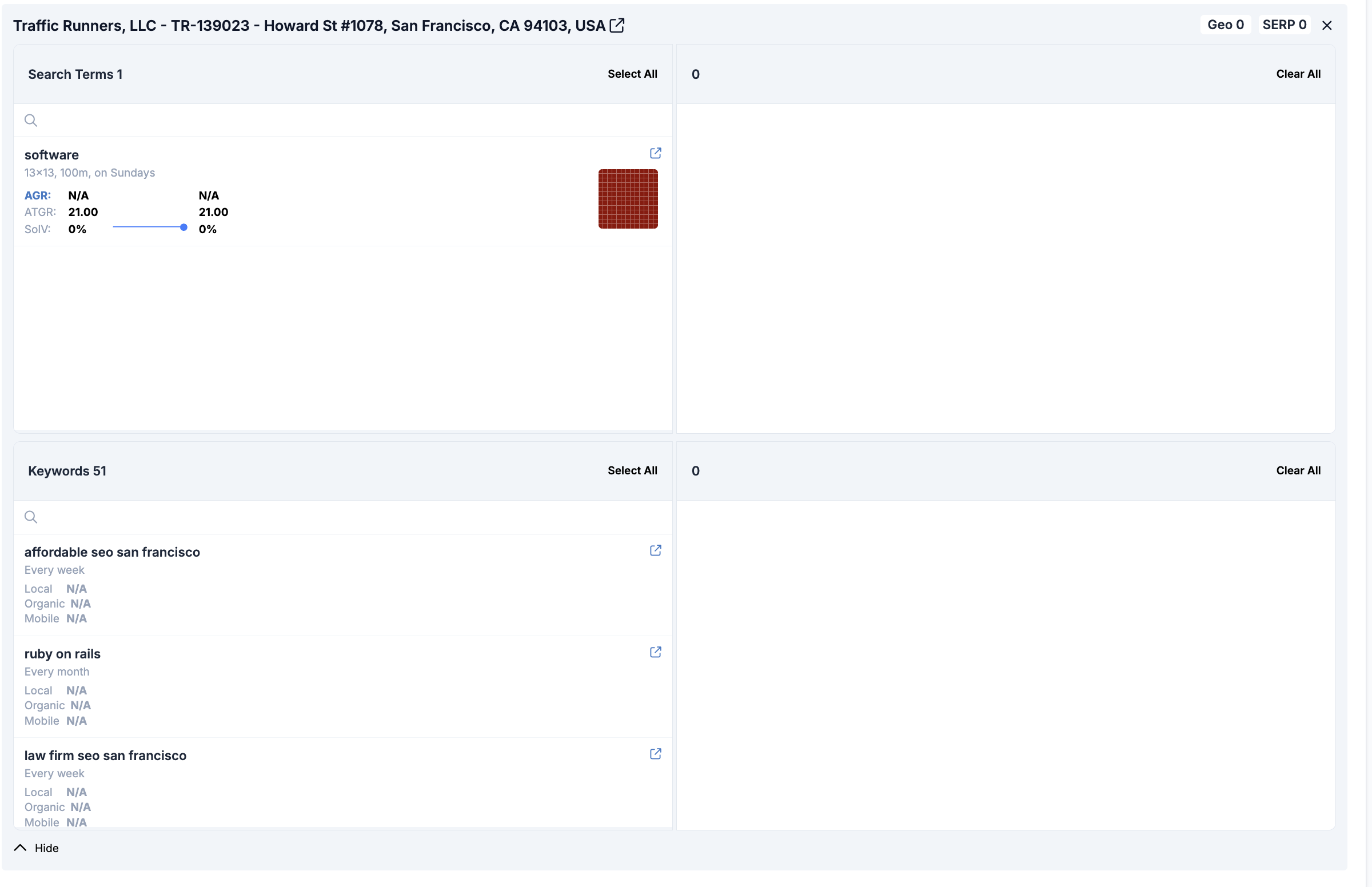
Location Select the location this report should cover.
Search Term If you want to include GeoGrid data in your report, select Search Term and choose the relevant scheduled GeoGrid.
⚠️ Important: To include GeoGrid data in your report, you must have a Scheduled GeoGrid already set up for this location. If you haven't done this yet, set up your Scheduled GeoGrid first before creating the report configuration.
Step 3 — Select Report Properties
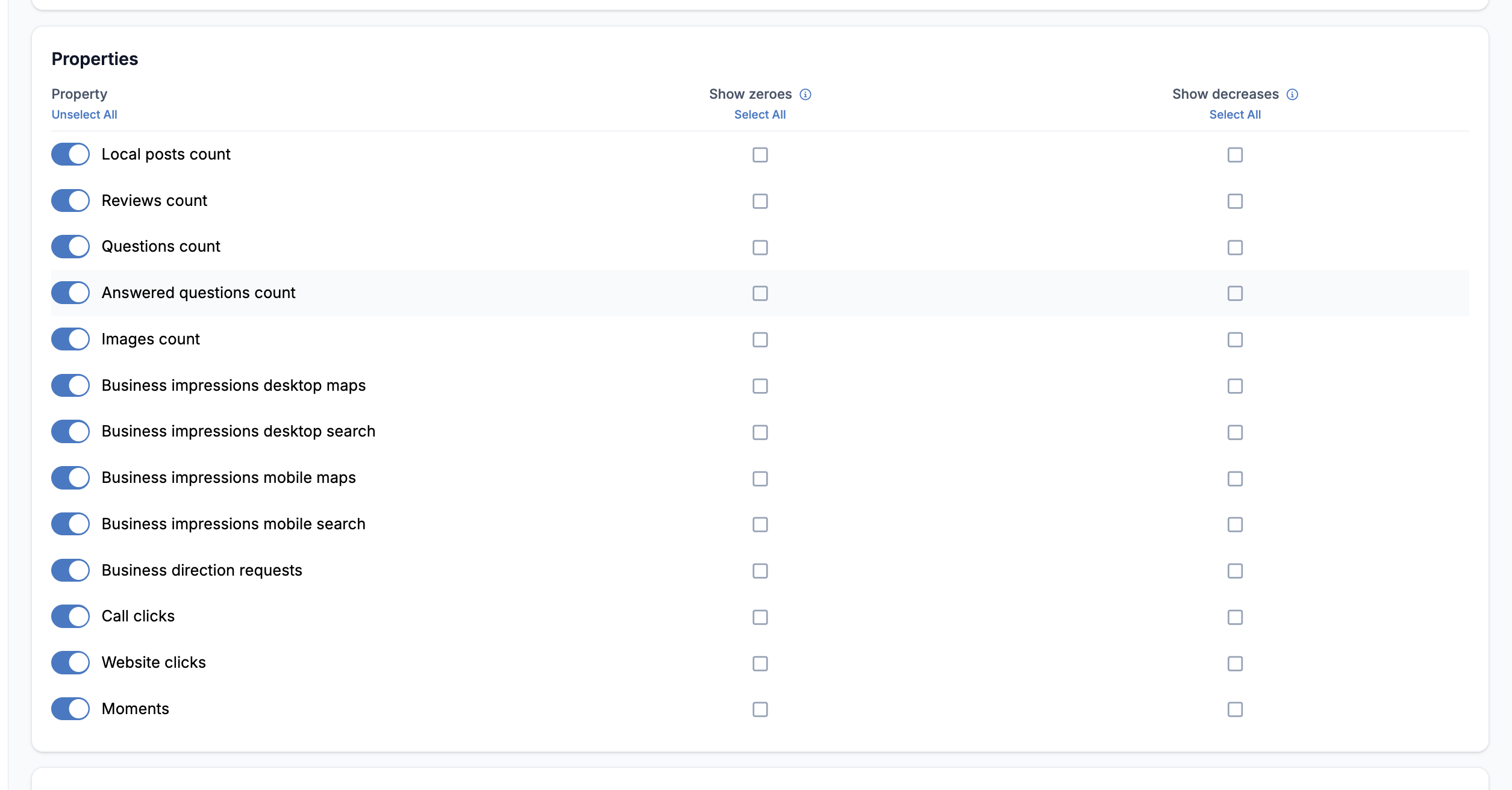
Choose which performance properties you want to include in the report. These are the data points that will appear in the generated report — for example, GeoGrid scores, review metrics, post activity, GBP stats, and more.
Two important toggles to be aware of:
| Toggle | What it does |
|---|---|
| Show zero values | Includes metrics that recorded zero activity in the period — useful for showing a complete picture |
| Show decreases | Includes metrics that declined during the period — useful for transparency and honest reporting |
💡 Tip: Turn on both Show zero values and Show decreases if you want a fully complete report that reflects all changes — positive, negative, and flat. This is especially useful for client reporting where full transparency is expected.
Step 4 — Choose the Reporting Time Period
Select the time window the report should cover each time it runs:
| Time Period | What it covers |
|---|---|
| Weekly | The past 7 days of data |
| One month | The past 30 days of data |
| Three months | The past 90 days of data |
Choose the period that matches how your client or team reviews performance data. Monthly is the most common for client reporting, while weekly works well for active campaigns being monitored closely.
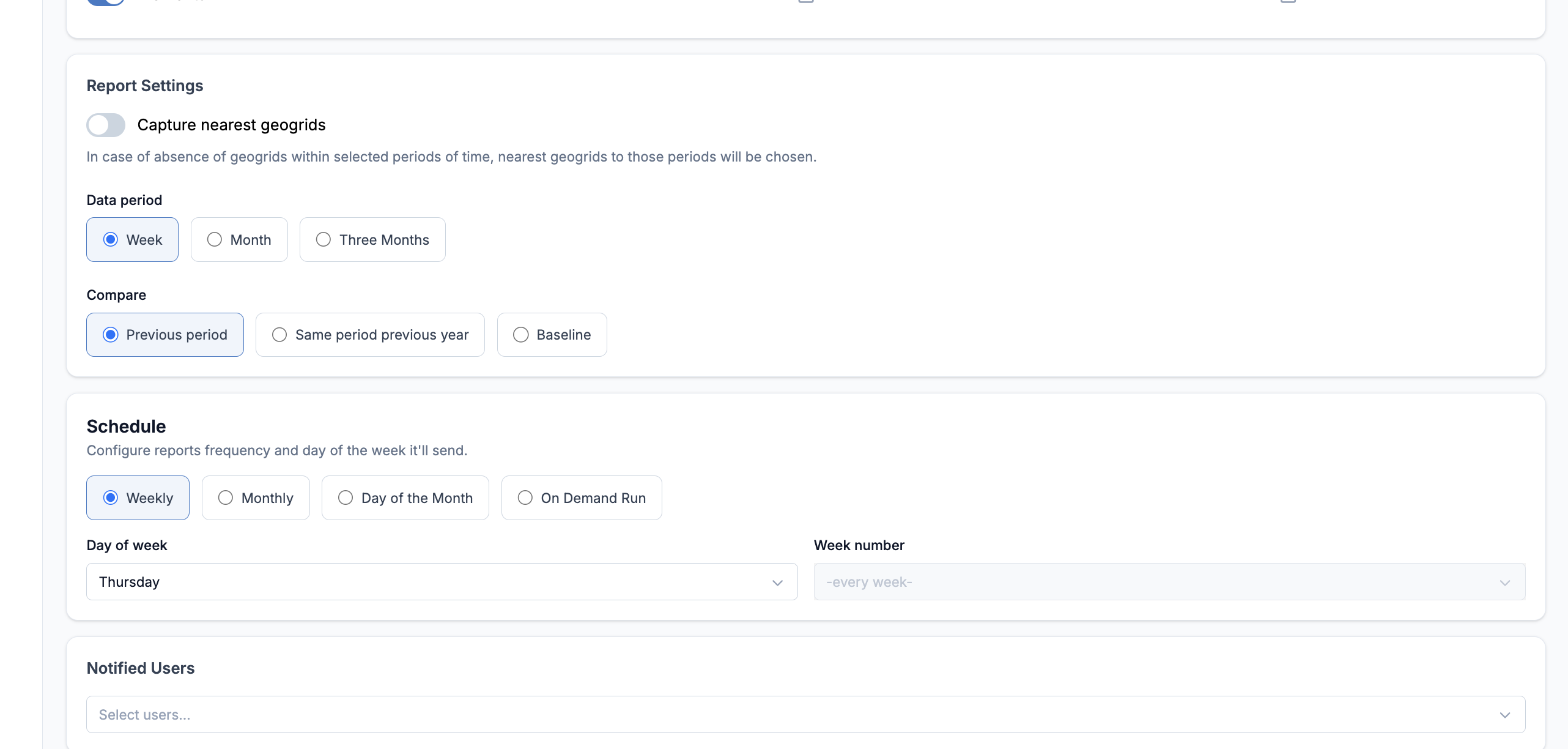
Step 5 — Set the Report Frequency
Choose how often the report should be automatically generated and sent:
- Weekly — the report runs and is delivered every week
- Monthly — the report runs and is delivered every month
This is separate from the time period — for example you could run the report weekly but have it cover the past month of data each time.
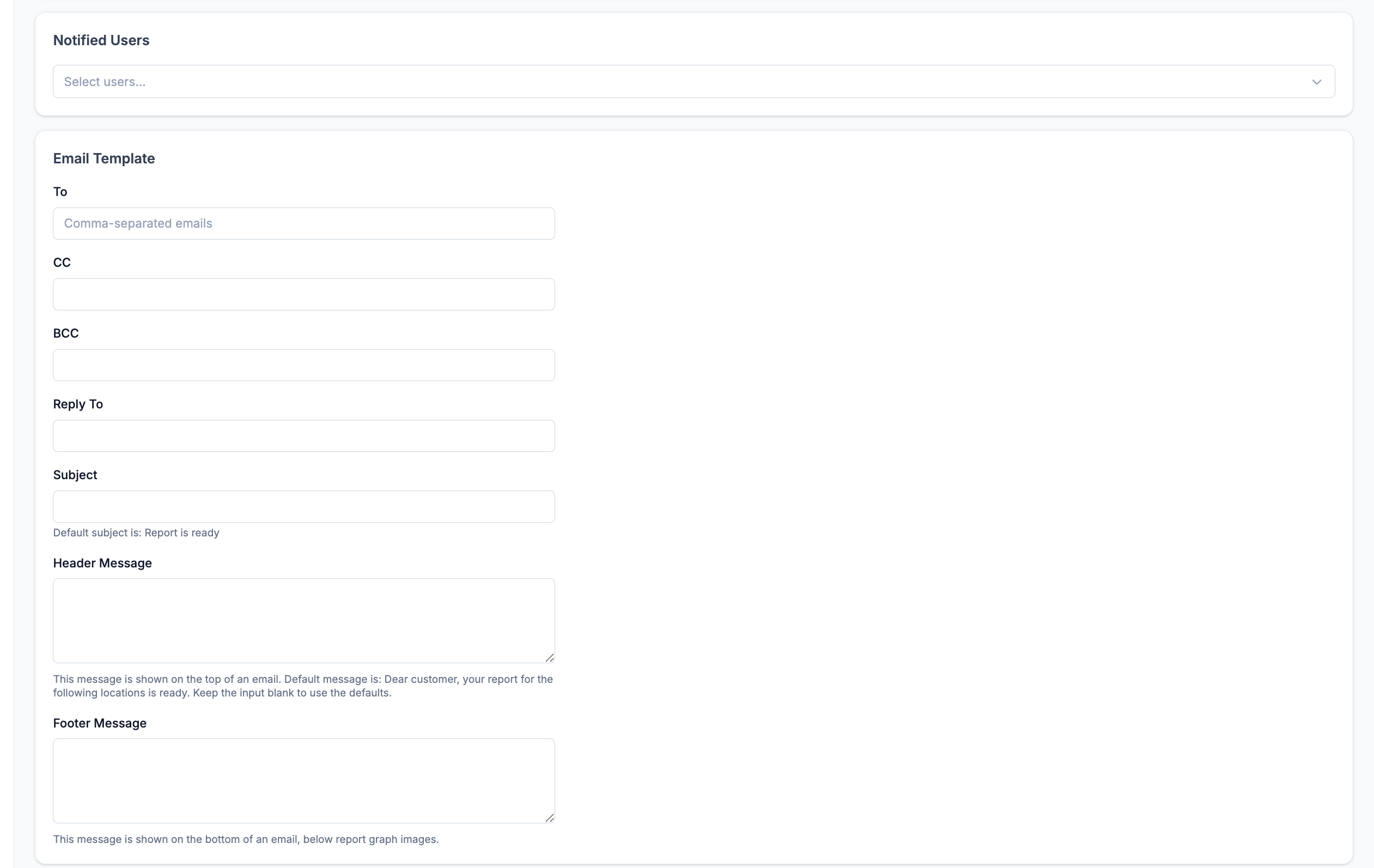
Step 6 — Add Email and White Label
Email Enter the email address the report should be delivered to. This can be your own email, a client's email, or both.
White Label If you want the report to appear under your own brand rather than LocalOptics branding, apply a White Label here. This is ideal for agencies sending reports directly to clients.
⚠️ Note: To use a White Label on your report, you need to have a White Label already created in your account settings. If you haven't set one up yet, create your White Label first before completing this step.
Once all six steps are complete, save your configuration. LocalOptics will automatically generate and deliver the report on your chosen schedule.