
What Is Google Account Connection?
Before you can manage any Google Business Profile locations in LocalOptics, you need to connect at least one Google account. This gives LocalOptics permission to access and sync the locations associated with that account.
Once connected, you can choose exactly which locations from that Google account you want to manage inside LocalOptics — you don't have to sync all of them if you don't need to.
💡 Good to know: There is no limit to the number of Google accounts you can connect to LocalOptics. You can add as many accounts as you need — the only limit is based on your LocalOptics account size and plan.
How to Add a Google Account
Step 1 — Click Add Account From your LocalOptics dashboard, locate and click the Add Account button. This is typically found in your account settings or on the Locations page if no accounts have been connected yet.
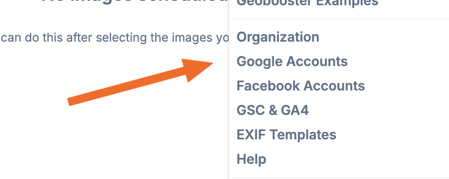
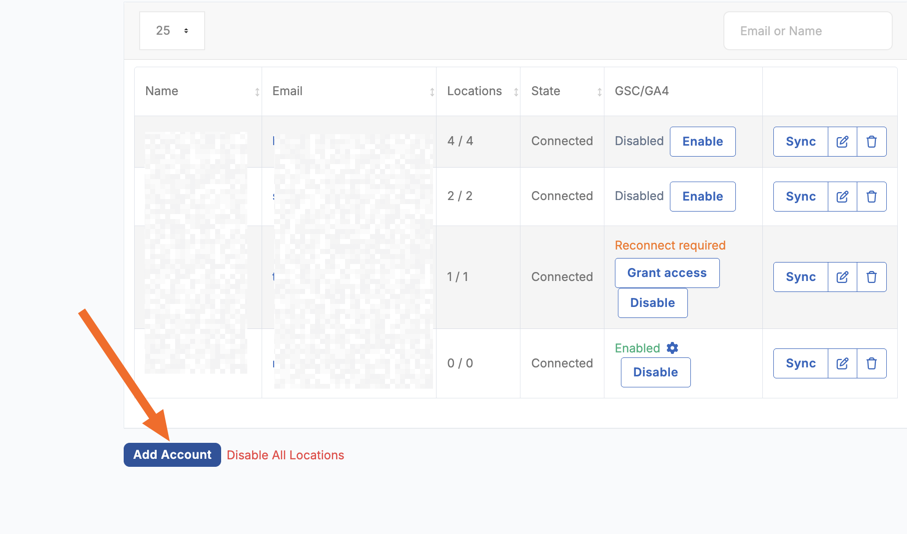
Step 2 — Authorize with Google Your browser will automatically redirect you to Google's authorization page. Sign in to the Google account you want to connect — this should be the account that has access to the Google Business Profile locations you want to manage.
Step 3 — Grant permissions Google will ask you to grant LocalOptics permission to access your account data. Review the permissions and click Allow to continue.
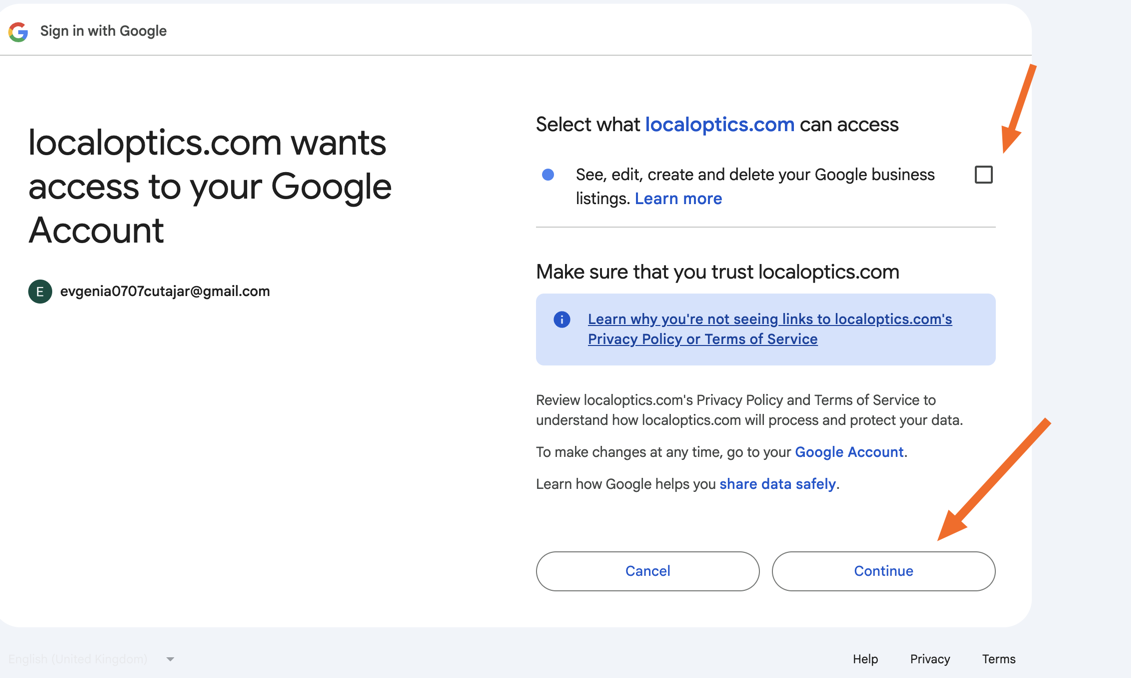
⚠️ Important: LocalOptics requires these permissions to read and manage your Google Business Profile data. Without granting the necessary permissions, the connection will not complete successfully.
Step 4 — Return to LocalOptics Once you've granted permissions, Google will automatically redirect you back to your LocalOptics dashboard.
Step 5 — Choose your locations After being redirected, you'll be prompted to select which locations from the connected Google account you want to sync into LocalOptics. Select the locations you want to manage and confirm your choices.